
Create your cricket overlay, add both squads, configure the match, connect it to OBS Studio and operate the score live. Allow about 10–15 minutes for the first setup.
1Choose Cricket
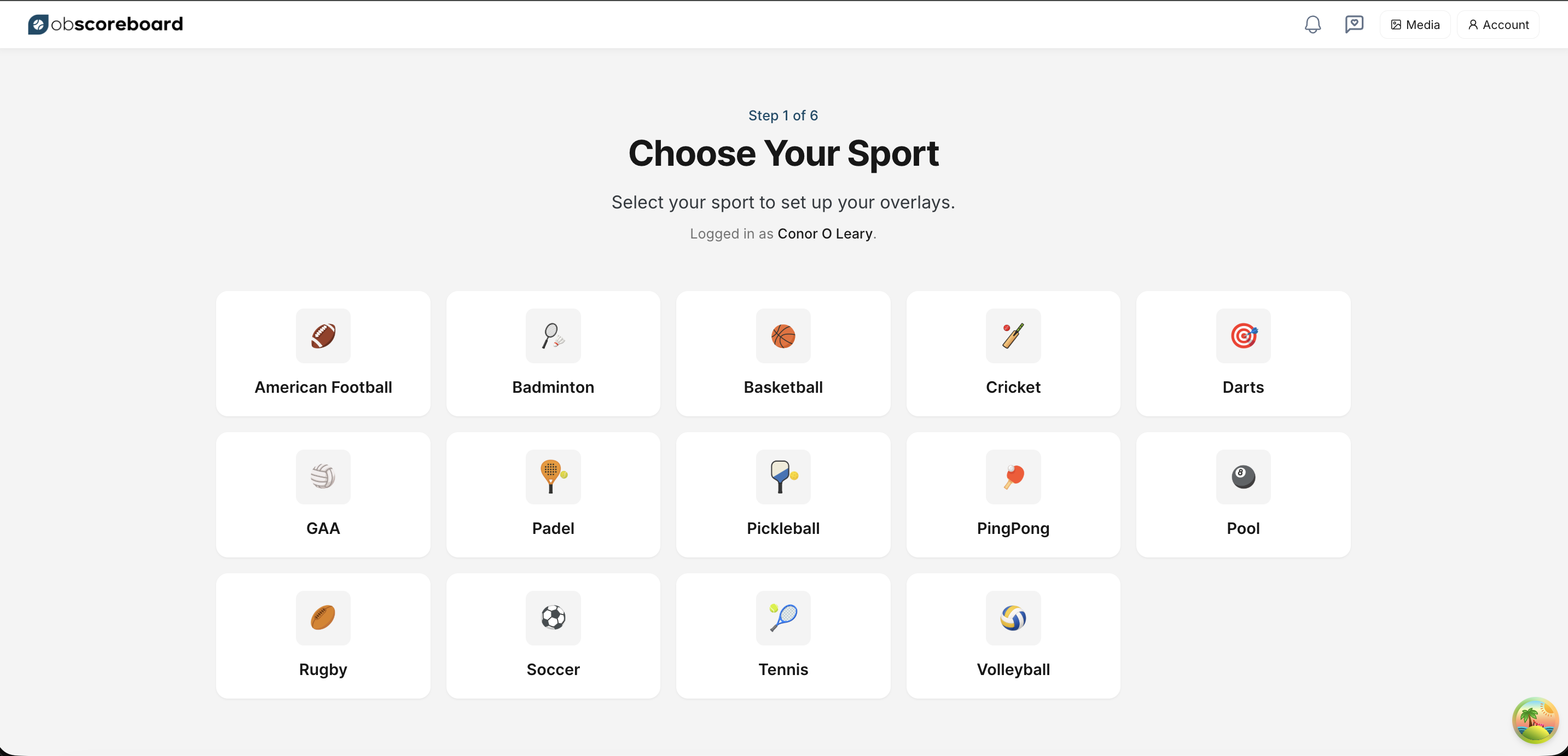
- Open OBScoreboard and start a new setup.
- On Choose Your Sport, select Cricket.
2Pick your scoreboard overlay
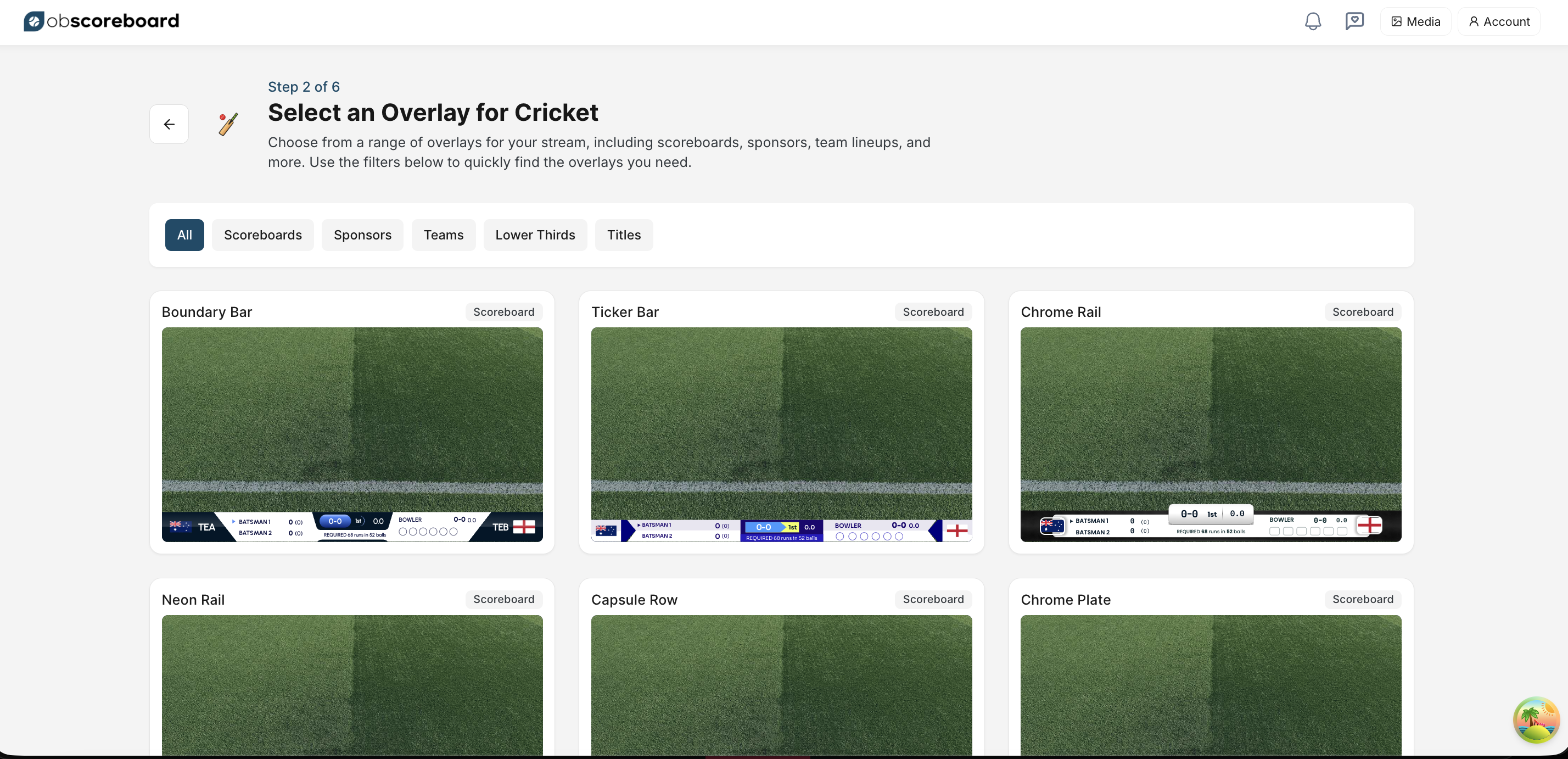
Choose a scoreboard overlay that stays readable over your camera feed. Boundary Bar is a safe starting point because it carries both batters, the bowler, score, innings, over and chase information in one lower rail.
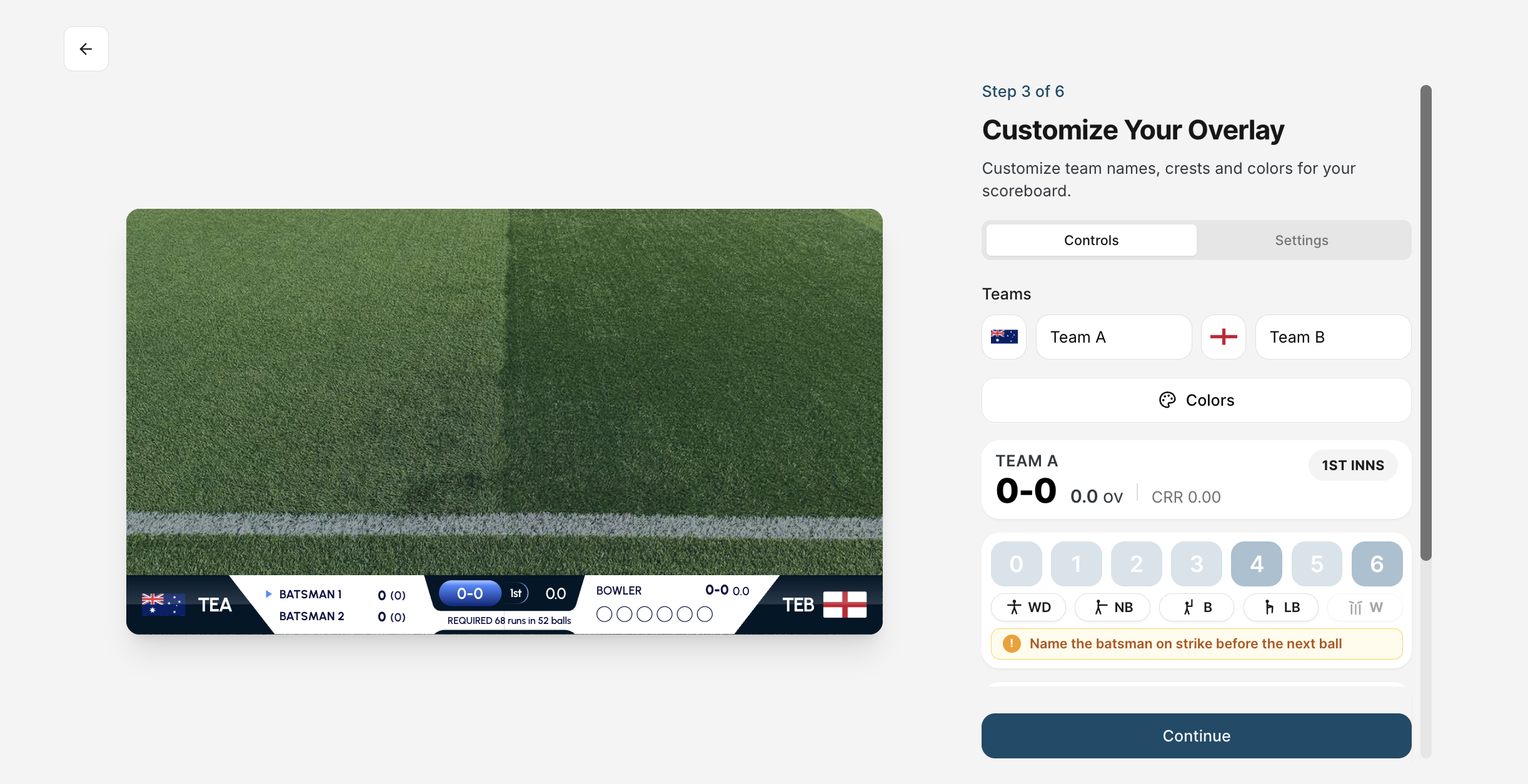
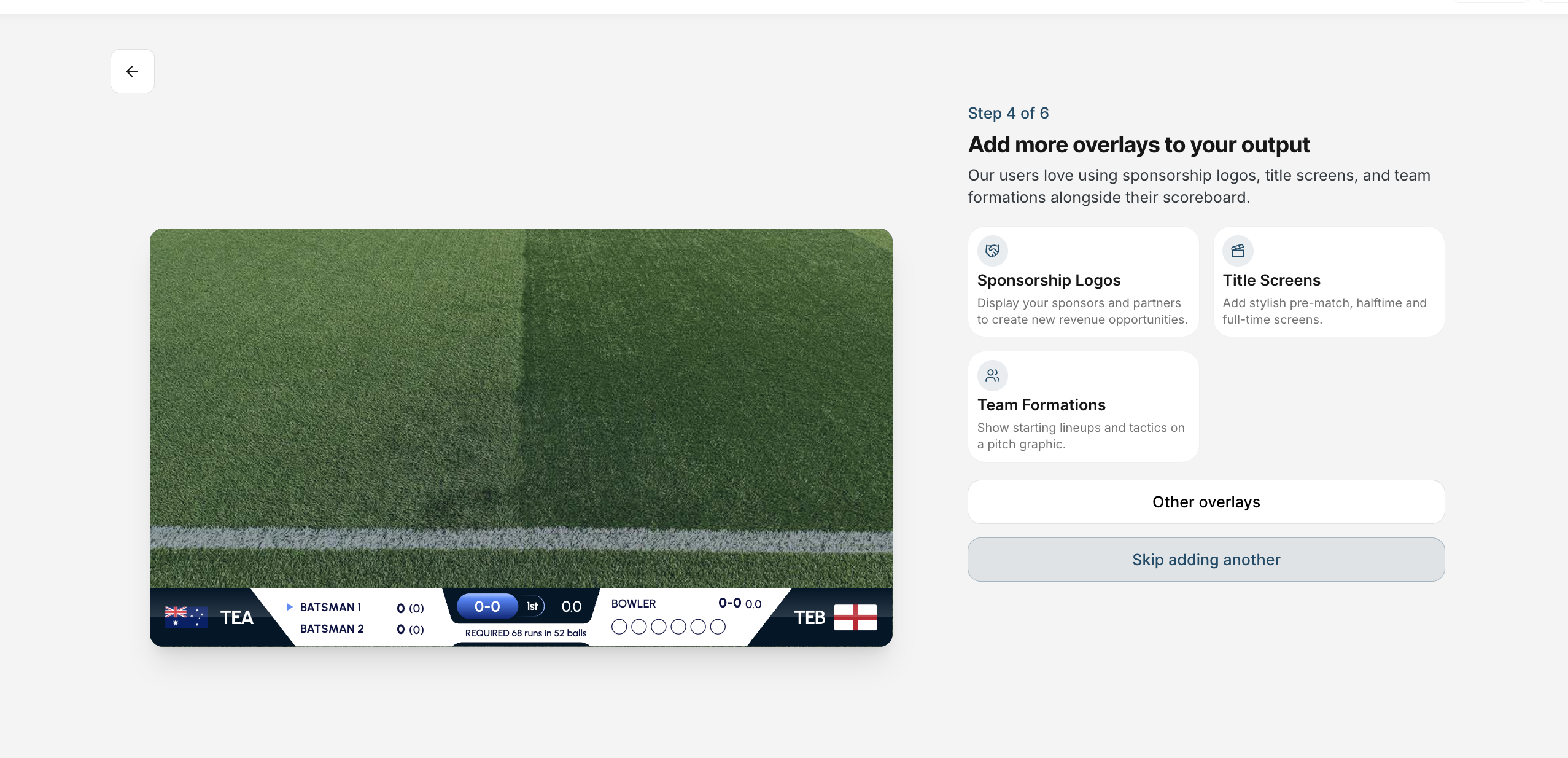
Set temporary team names, flags or crests and colours on the customization screen, then continue. Extra sponsor, title and team overlays are optional. Choose Skip adding another if you only need the scoreboard.
3Create both teams and enter the playing XI
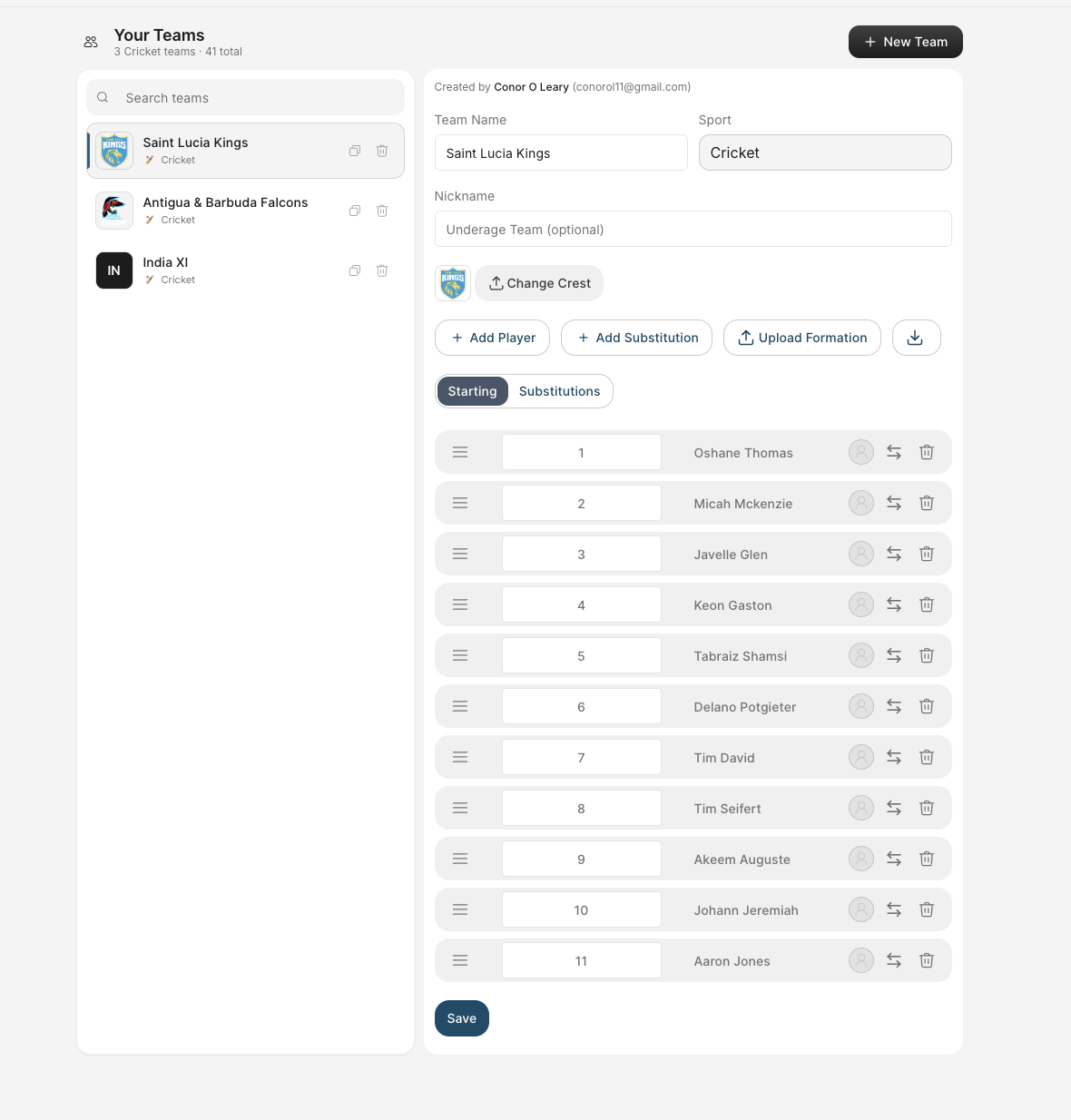
- Open Teams and choose New Team.
- Enter the full team name and optional nickname, then upload the crest.
- Use Add Player for each squad member. Set the squad number and player name.
- Drag players into order if needed, then click Save. Repeat for the opposition.
4Select the teams, squads and innings settings
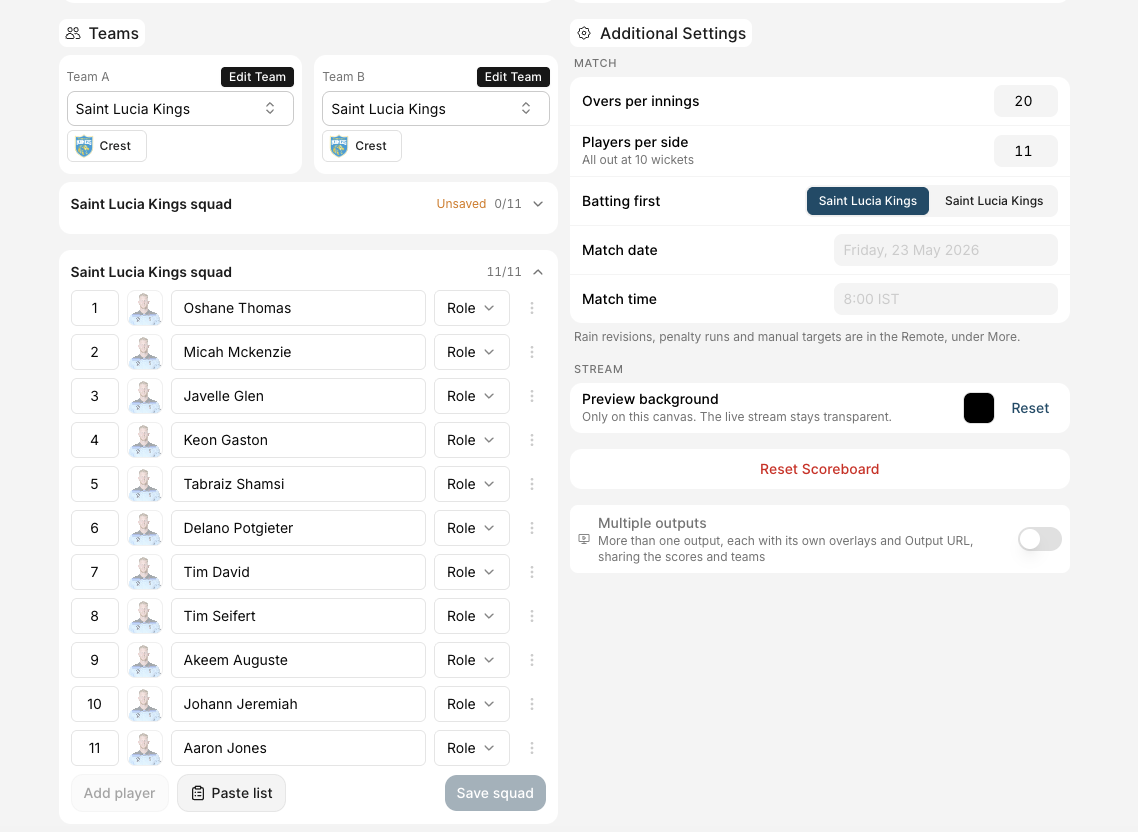
- Choose Team A and Team B. Use Edit Team if anything is missing.
- Expand each squad and select the match XI. Assign player roles where useful.
- Set Overs per innings, Players per side and the team Batting first.
- Save each squad. Add the match date and time if those fields are enabled.
5Name the striker, non-striker and bowler
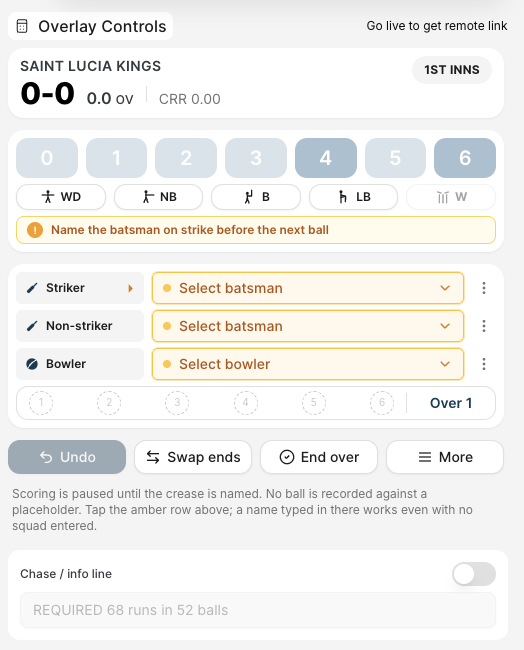
Scoring is paused until the crease is named. In Overlay Controls, open each amber selector and choose from the saved squad.
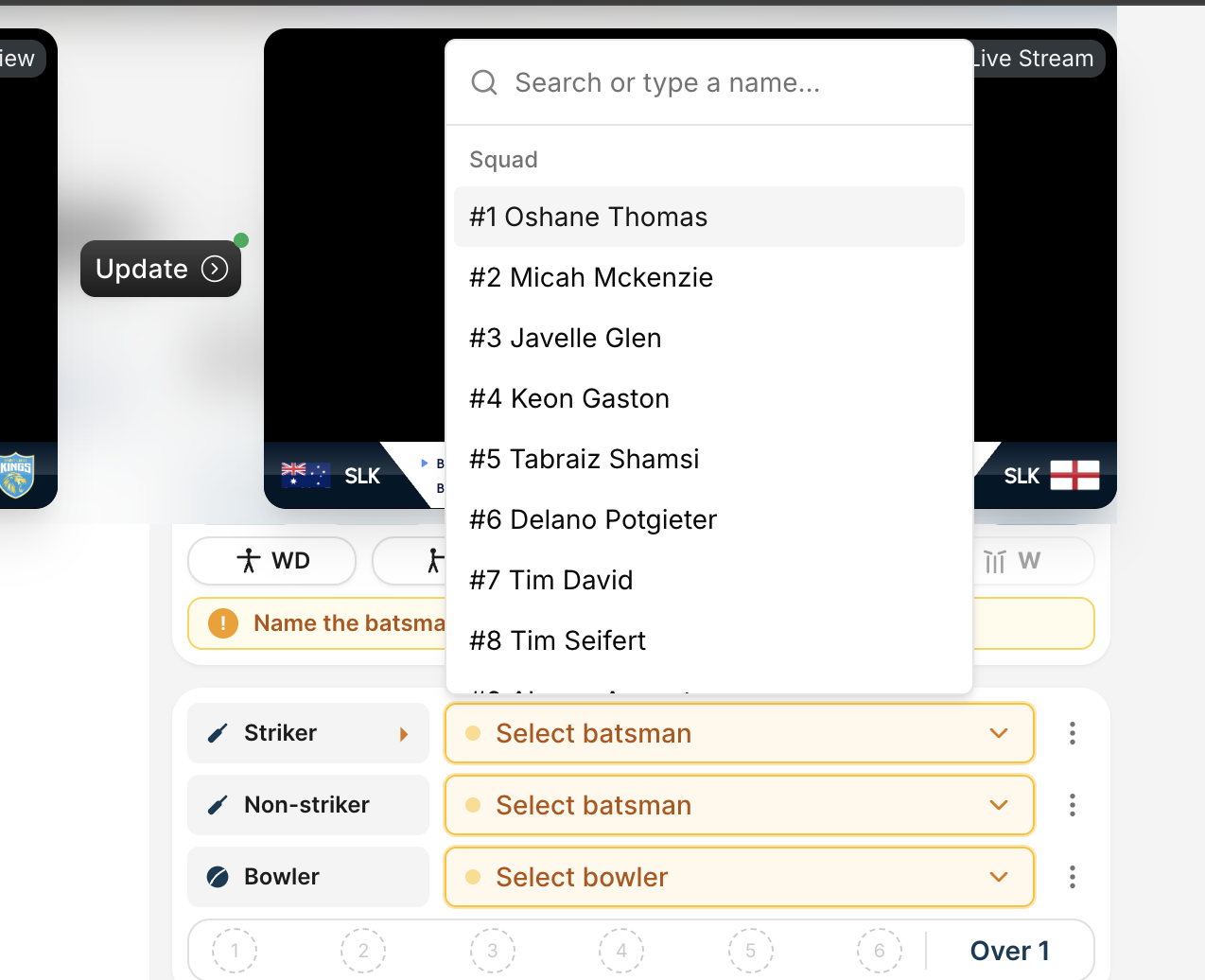
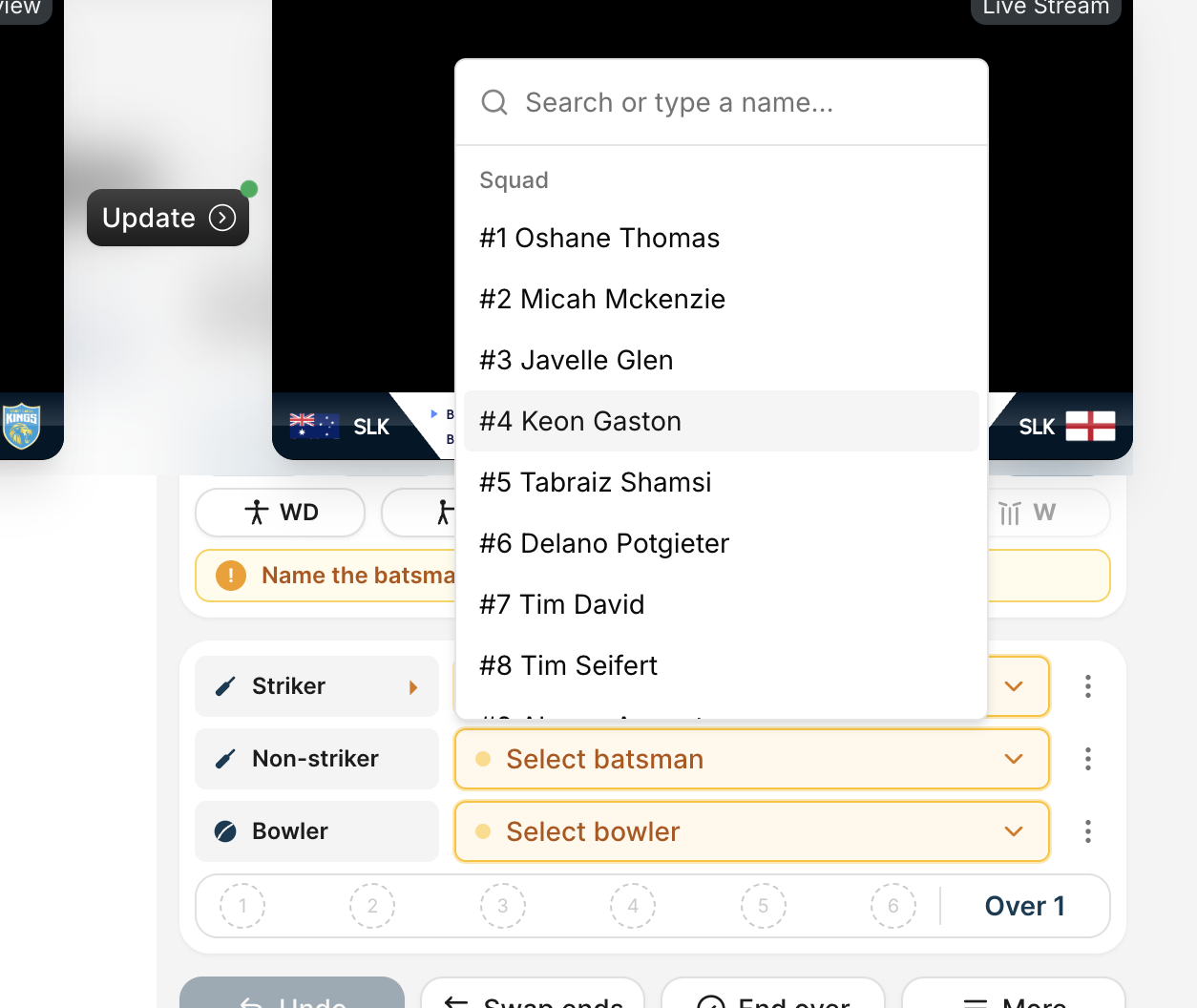
A typed placeholder name also works if someone is not in the squad, but selecting a saved player gives the cleanest scorecard.
6Score each delivery
Runs and extras
- Tap 0–6 for runs from the delivery.
- Use WD, NB, B or LB for extras.
- Use W for a wicket and follow the prompts.
Between deliveries
- Undo reverses the last scoring action.
- Swap ends changes the batters.
- End over closes the current over. Confirm the next bowler.
- More opens advanced match actions.
7Add the live scoreboard as a Browser source
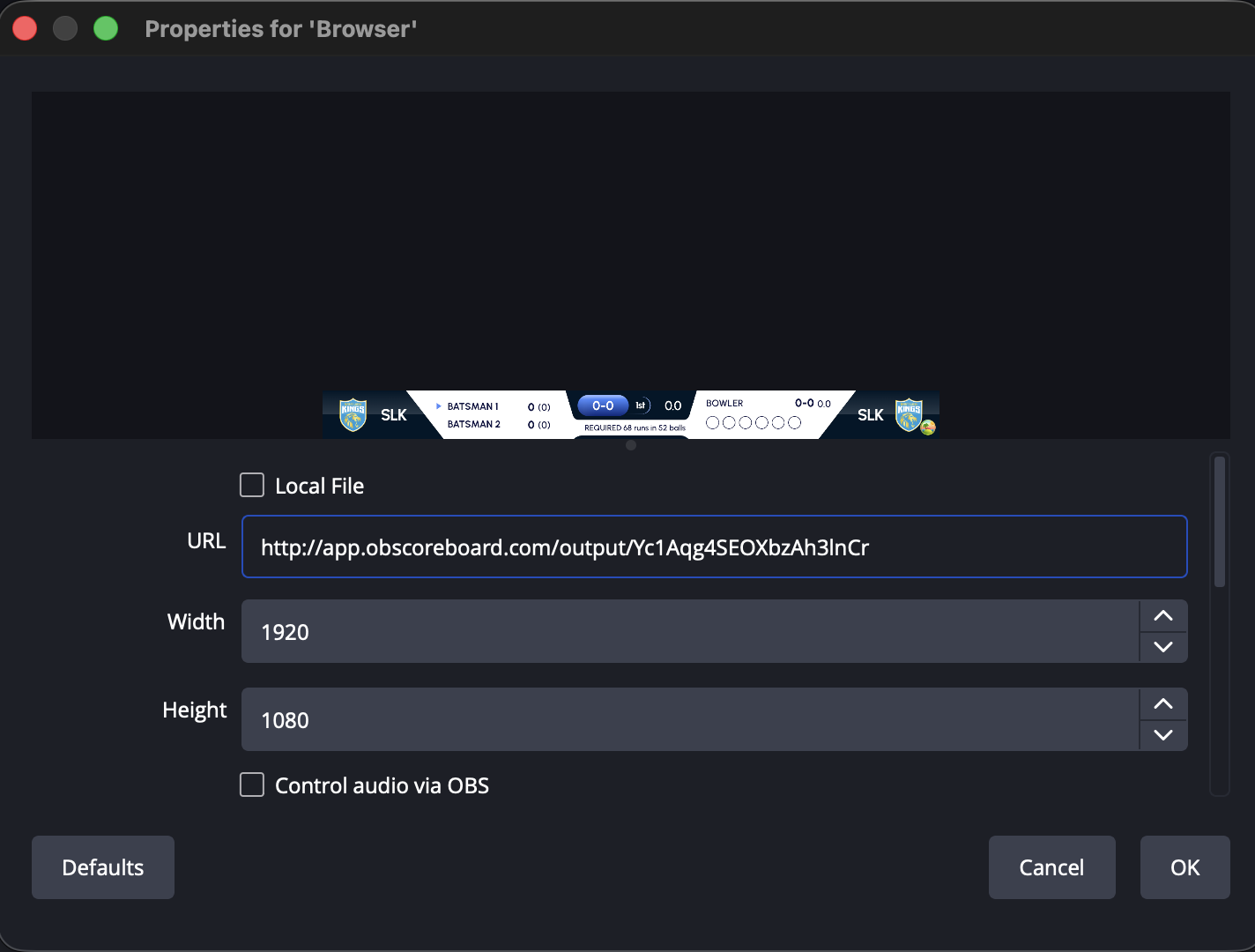
- In OBScoreboard, click Go Live and copy the output or stream link.
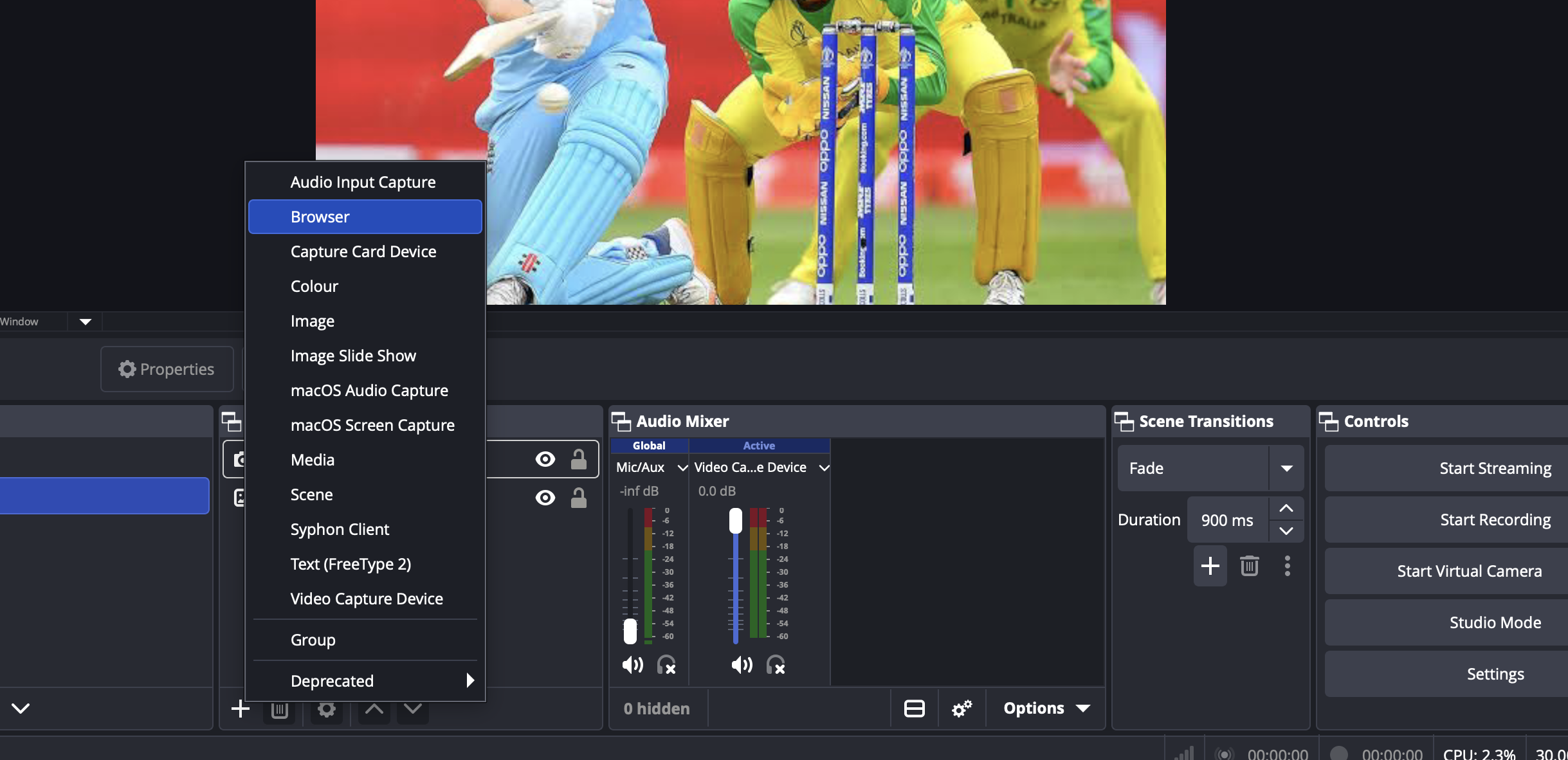
- In OBS, select the scene containing your camera feed. Under Sources, click + and choose Browser.
- Create a new source, paste the OBScoreboard URL and leave Local File off.
- Set Width and Height to match your OBS Base Canvas Resolution, for example 1920 × 1080, then click OK.
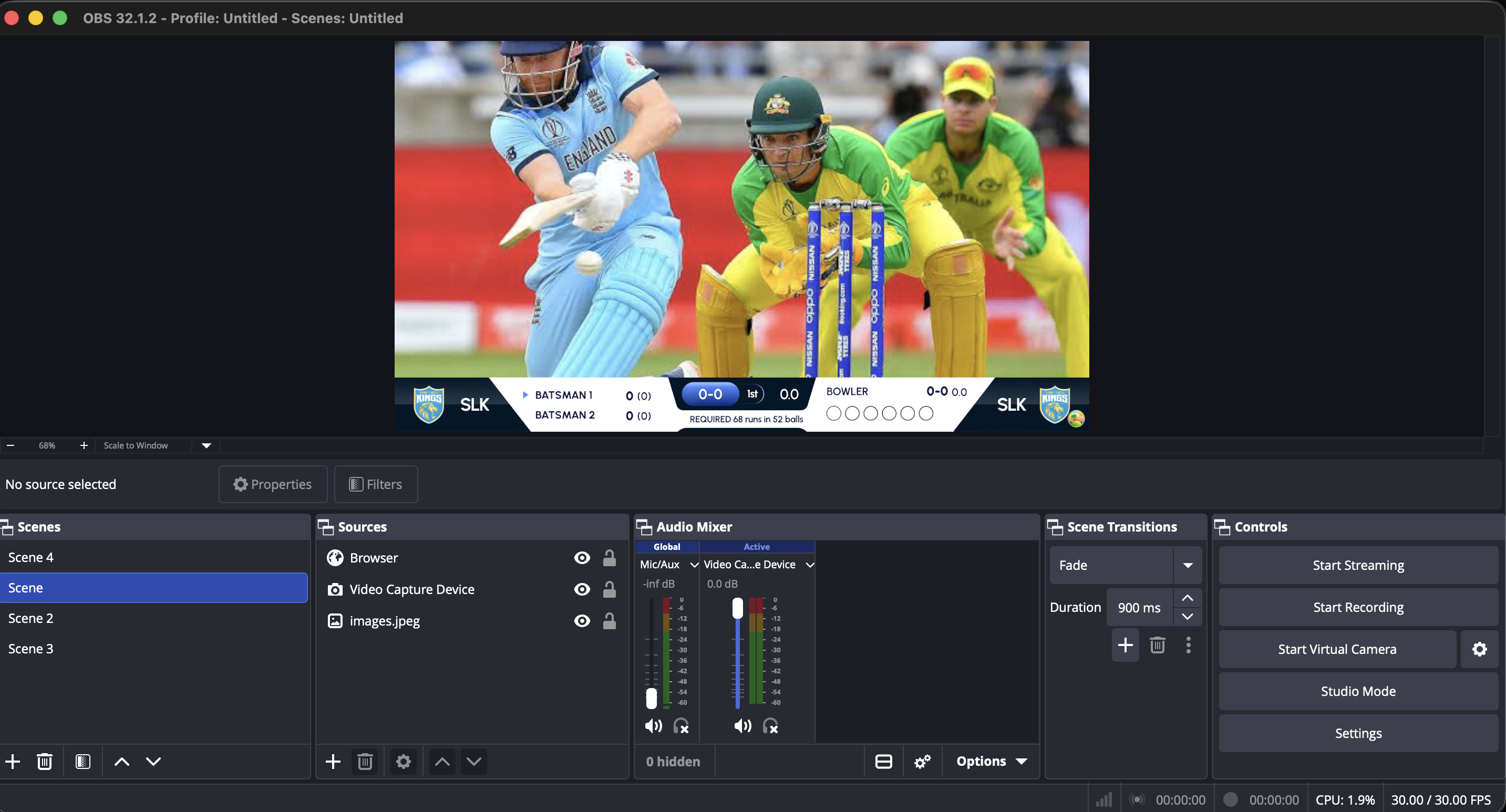
- Keep the Browser source above the camera or video source in the Sources list.
8Run a 60-second pre-match check
Cricket scoreboard troubleshooting
The overlay is not visible in OBS
Check that the Browser source eye icon is on, the source is above the video feed, and the copied URL is in the URL field, not set as a Local File. Refresh the source if it was created before going live.
The scoreboard is too small or in the wrong position
Set the Browser source dimensions to the OBS Base Canvas Resolution, typically 1920 × 1080. Then use Transform and Fit to Screen.
I cannot record the next ball
Look for an amber warning. Usually the striker, non-striker or bowler has not been selected after a wicket, innings change or over transition.
The player I need is missing
Return to Teams, add the player and save the team or squad, or type a temporary name in the live selector.
The score is wrong
Use Undo immediately for the most recent action. For penalty runs, rain revisions or a manual target, open More.
You are match-ready.
Keep OBScoreboard open on the scoring device and OBS open on the production computer. Every scoring action updates the browser overlay live.
Open OBScoreboard