
A step-by-step guide to installing the OBScoreboard Stream Deck plugin and controlling your live scoreboard from hardware, mobile, or a virtual Stream Deck.
Would you rather control your scoreboard with physical buttons? The OBScoreboard Stream Deck plugin for Elgato Stream Deck lets you update scores, clocks, and layer visibility instantly with a single button press, without switching away from your streaming software.
This guide shows you, step by step, how to set it up. It works on a physical Stream Deck, the Stream Deck mobile app on your phone, or the virtual Stream Deck app on your laptop. Pick whichever one you use, the setup is the same.
Why Use a Stream Deck for Live Sports Broadcasting?
OBScoreboard is a live sports graphics tool. It's not just scoreboards: it creates title screens, team formations, substitutions, lower thirds, overlays, timers, and lineups for your stream. It works with OBS, vMix, Wirecast, Streamlabs, and more.
The OBScoreboard Stream Deck plugin connects your Stream Deck directly to your live board. Once it's set up, you can update scores, start and stop the clock, manage cards and penalties, trigger graphics, and show a live score bug, all with the press of a key, instead of alt-tabbing to a browser tab mid-broadcast.
There's no keyboard shortcut wrangling involved. Streamers often avoid hotkey-based tools because custom key combinations tend to clash with whatever else is running (OBS, chat overlays, other plugins). OBScoreboard's Stream Deck actions skip that entirely: the plugin talks directly to the OBScoreboard cloud API, so there's nothing to remap and nothing to conflict with.
You also don't have to build every button from scratch. Paste your board's unique Control URL into one key, and the plugin exposes it as a set of ready-made dropdowns for that board, no manual coding required. From there, duplicating that setup across Score, Clock, Card, and Undo keys takes seconds (see the tips below).
Because every device talks to the same live board over the API, you can also mix and match hardware. Run a physical Stream Deck at the production desk while a sideline volunteer manages cards and substitutions from the OBScoreboard mobile app, and both update the same on-air overlay in real time.
1Step 1: Install the OBScoreboard Plugin via Elgato Marketplace
Open the Elgato Marketplace and search for "OBScoreboard." Click on the plugin page. Then click the Open in Stream Deck button. This installs the plugin straight into your Stream Deck app.
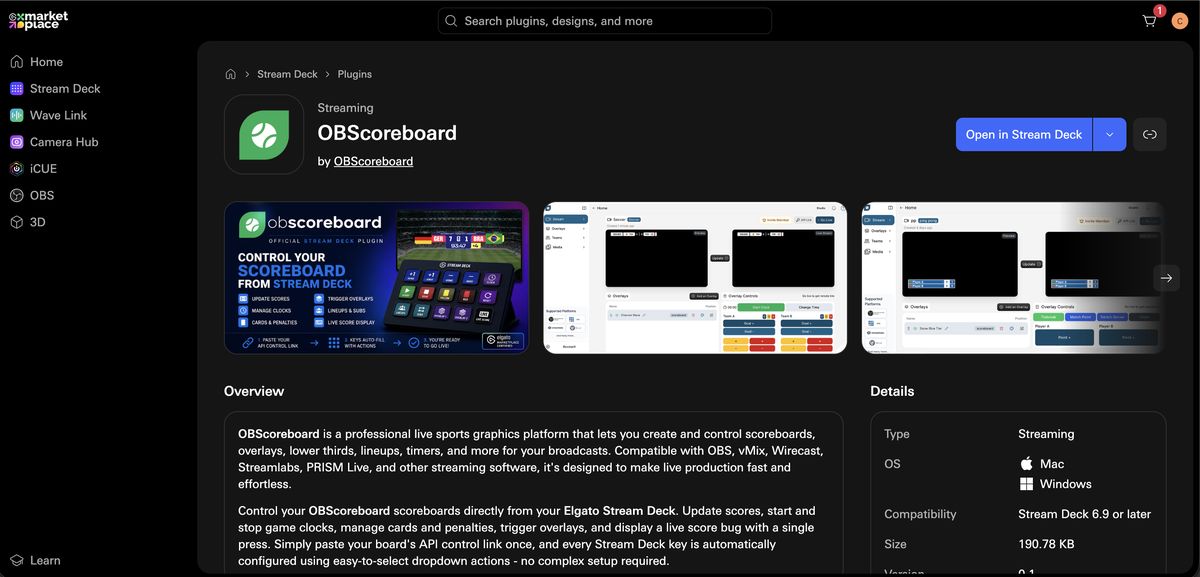
Once it's installed, OBScoreboard shows up as its own section in the Stream Deck actions list. You'll see buttons for Score, Undo Point, Reset Score, Go Live, Game Clock, Period/Quarter, Fouls, Cards, Timeout, and more.
2Step 2: Retrieve Your API Control URL Link
Log in to OBScoreboard and open the stream you want to control. In this example, we're using a Soccer match. This is your Studio view, showing your overlay preview, the live output, and manual Overlay Controls for Team A and Team B.
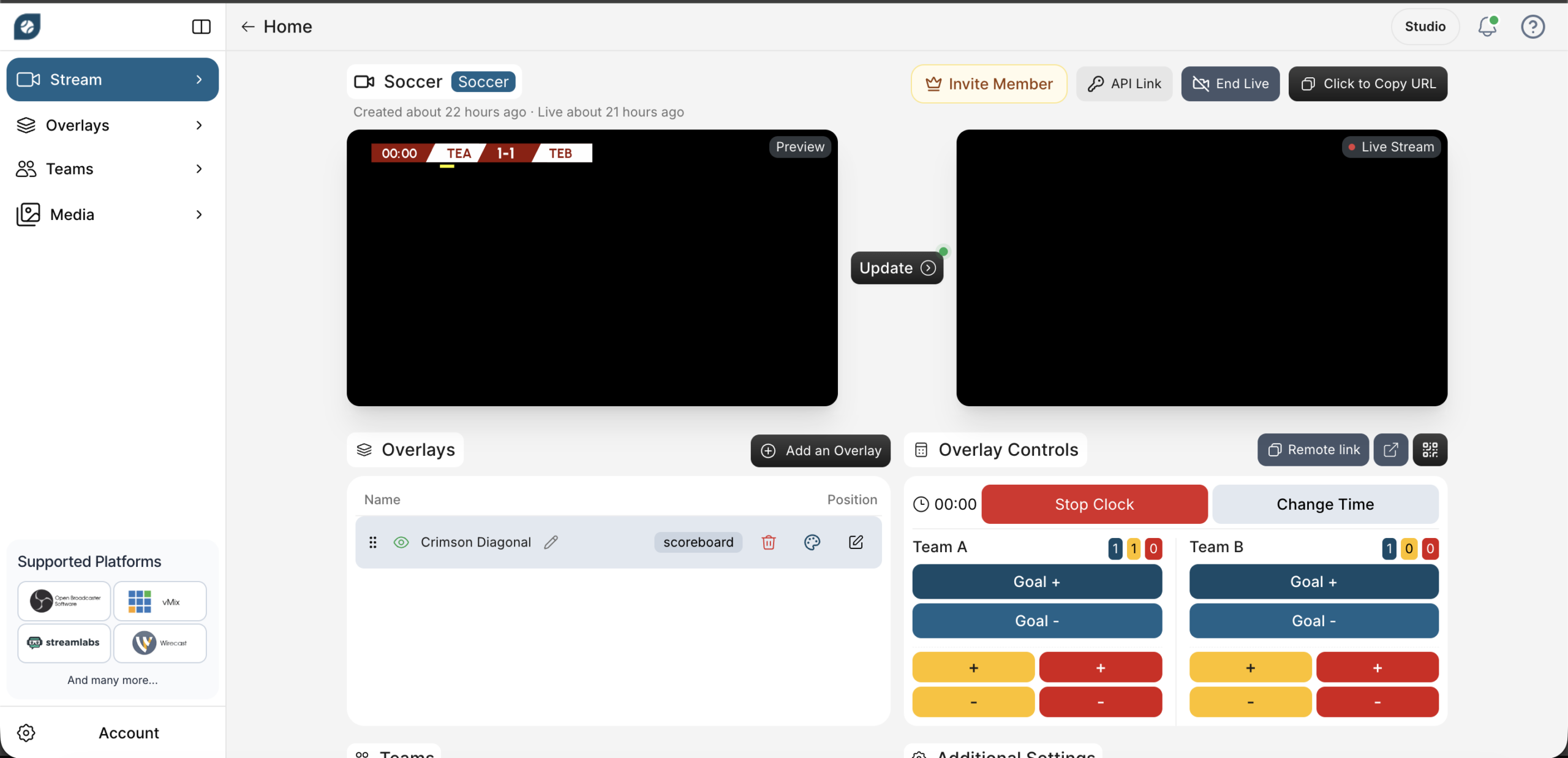
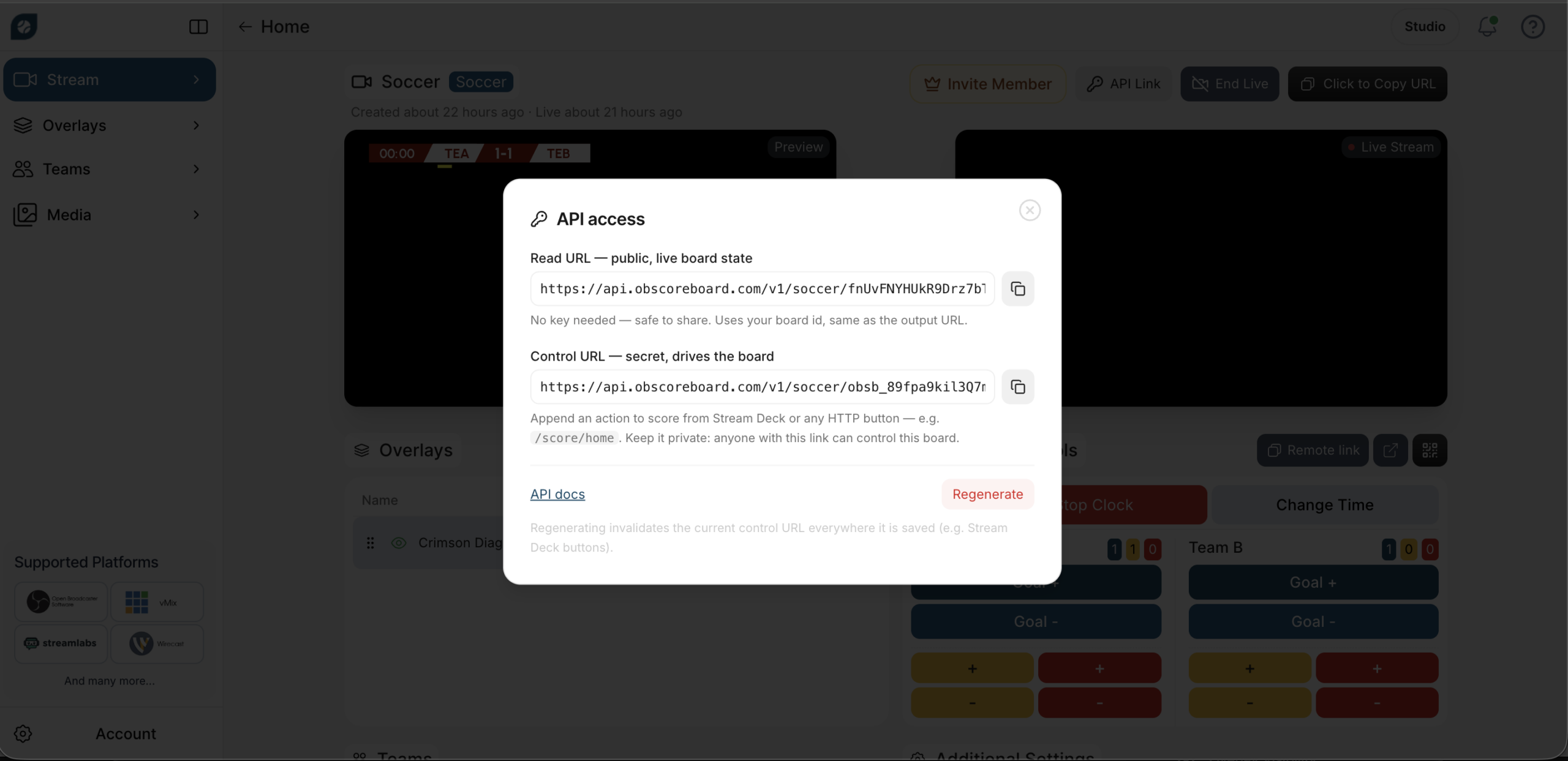
Click API Link at the top of the page. You'll see two URLs:
- Read URL: public and safe to share. It only shows the live board state.
- Control URL: this is the one you need. It's private and it drives the board. Treat it like a password.
3Step 3: Configure Actions & Dropdowns in Stream Deck Software
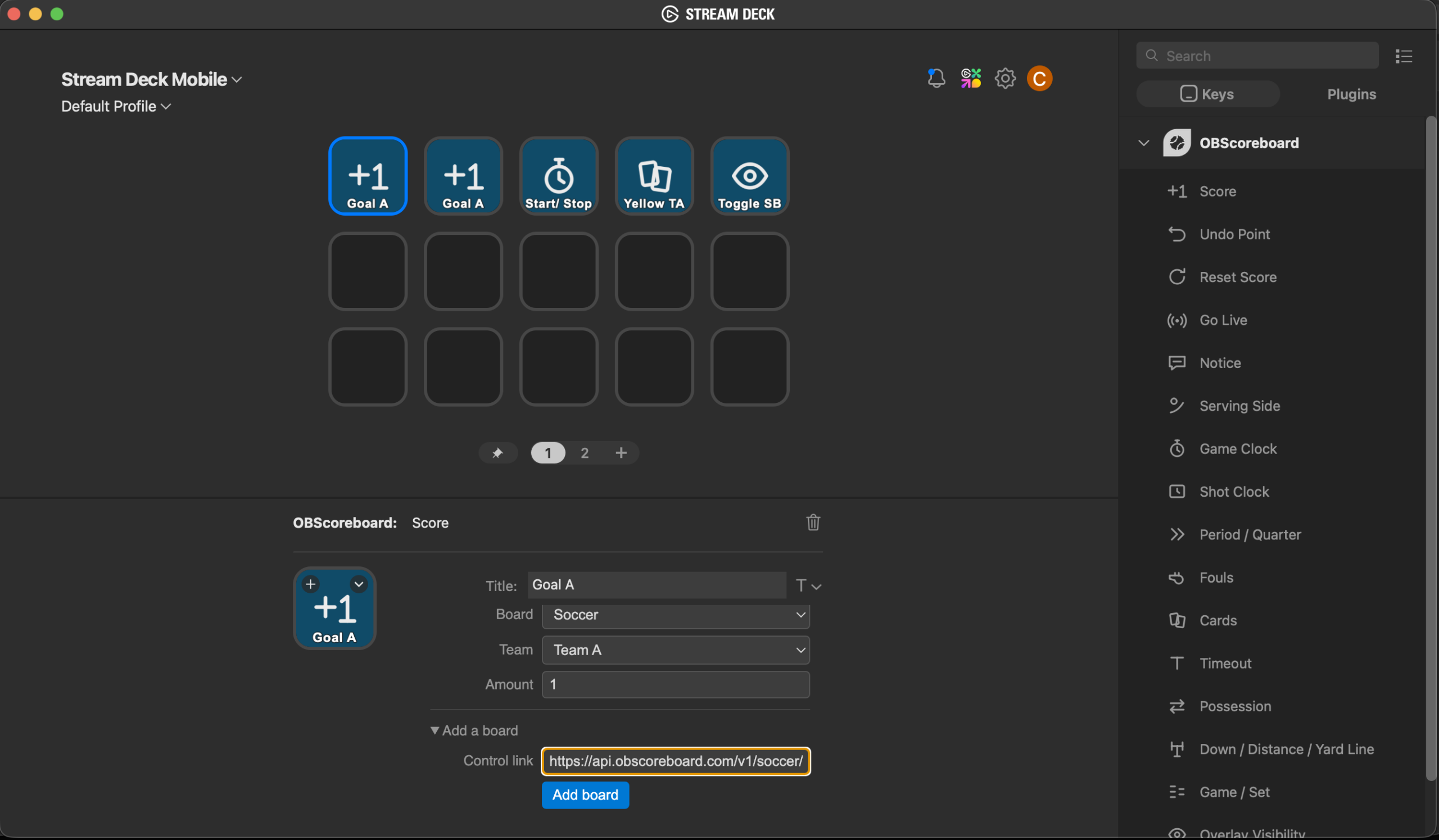
Go back to the Stream Deck app. Drag the OBScoreboard actions you want onto an empty key. A simple setup might use: one key for +1 Goal (Team A), one key for +1 Goal (Team B), a Start/Stop clock key, a Yellow Card key, and a Toggle Scoreboard key to show or hide the overlay.
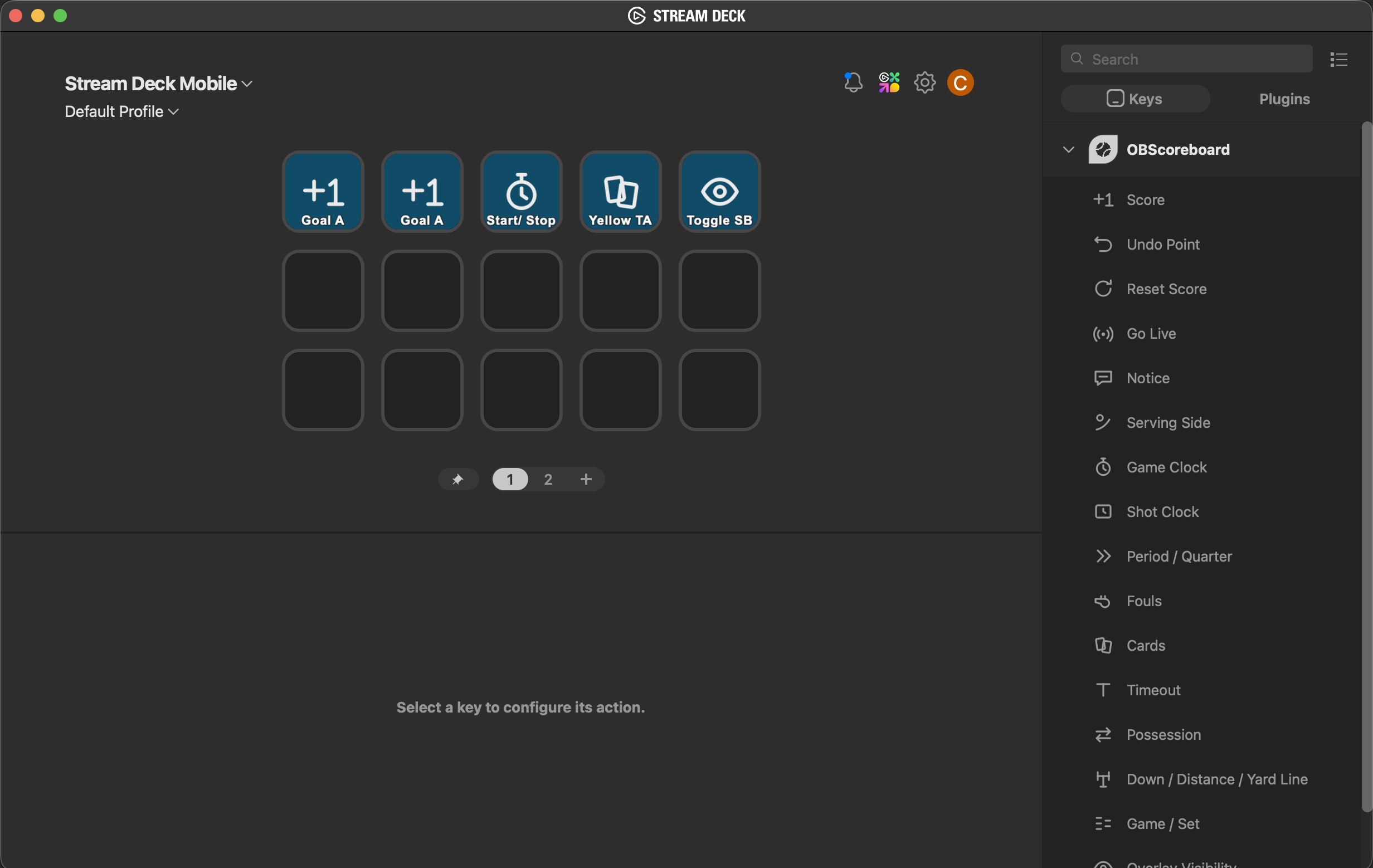
Click the key you just added. In the settings panel, scroll to "Add a board." Paste your Control URL from Step 2 into the Control link field and click Add board. You only need to paste this once per key group; the plugin then exposes the right dropdowns automatically.
Binding Scores, Match Clocks, and Penalties
Once your board is added, three dropdowns appear on the key. Fill them in like this:
- Board: select the board you just added (for example, "Soccer").
- Team: pick which team this key affects. We picked Team A.
- Amount: set this to 1. This makes sure each press adds only one goal.
The same dropdown pattern applies to clocks, cards, and penalties: add the Game Clock action to a key to start and stop the match timer, or add a Cards action, set the Team and card colour, and it logs a caution or dismissal against that team without leaving your streaming software. Press the key and watch the change reflect live on your overlay, no browser tab needed.
Quick Tips for Your Stream Deck Scoreboard Setup
- Duplicate a key instead of rebuilding it. Right-click the key you set up, choose Copy, then paste it into the next empty spot. Open the copied key and adjust its settings in the configuration panel (for example, switch the Team to Team B). Stream Deck remembers the board, so there's no need to paste the Control URL again.
- Want an "undo goal" key? Set the Amount to -1 on a second key, or use the built-in Undo Point action.
- Running the show from your phone? The Stream Deck Mobile app supports the same OBScoreboard actions.
- No hardware deck? The virtual Stream Deck app on your laptop works the exact same way. You can also control your board straight from the OBScoreboard app on Android or iOS, no Stream Deck required.
Frequently Asked Questions
Is the OBScoreboard Stream Deck plugin free?
Yes. The plugin is free to install from the Elgato Marketplace. You just need an active OBScoreboard account and board to connect it to.
Can I run the score bug and timer control from the Stream Deck Mobile App?
Yes. The same OBScoreboard actions and Control URLs work across physical Stream Deck hardware, the Stream Deck Mobile app on your phone, and the virtual Stream Deck app on desktop, so you can run the score bug and match timer from whichever one you have on hand.
Does updating a score via Stream Deck cause stream latency or lag?
No. Pressing a key sends an update straight to your live board over the OBScoreboard API, so your on-screen graphics refresh immediately without adding any encoding load to your streaming software.
What sports does OBScoreboard support?
OBScoreboard supports American football, soccer/football, tennis, padel, pickleball, GAA, darts, pool/billiards, basketball, rugby, ping pong/table tennis, badminton, and volleyball, each with its own scoreboard layout. The Stream Deck setup process is the same for every board: copy the Control URL and paste it into your key.
Is the control link safe to share?
No. The Control URL drives your board, so anyone with the link can change your score. Only the Read URL is safe to share publicly. Keep the Control URL private, and regenerate it if you think it's been exposed.
Ready to run your broadcast like a pro?
Drop OBScoreboard's browser-based scoreboards, title screens, and lower thirds straight into OBS, vMix, or Streamlabs. Nothing to install, and you can control it all from a Stream Deck, your laptop, or your phone. You'll be live in seconds.